

 ██████╗  ██████╗  ██████╗███╗   ███╗     ██████╗██╗     ██╗
 ██╔══██╗██╔═══██╗██╔════╝████╗ ████║    ██╔════╝██║     ██║
 ██████╔╝██║   ██║██║     ██╔████╔██║    ██║     ██║     ██║
 ██╔══██╗██║   ██║██║     ██║╚██╔╝██║    ██║     ██║     ██║
 ██║  ██║╚██████╔╝╚██████╗██║ ╚═╝ ██║    ╚██████╗███████╗██║
 ╚═╝  ╚═╝ ╚═════╝  ╚═════╝╚═╝     ╚═╝     ╚═════╝╚══════╝╚═╝

        Local AI on AMD GPUs — one binary, zero setup
ROCm CLI is a command-line tool for setting up and running local AI on AMD GPUs, with a full-screen TUI dashboard for GPU telemetry, model serving, and chat.
It ships as a single prebuilt binary for Linux and Windows (x86_64), needs no Python, Rust, or existing ROCm install, and includes inference engine adapters for Lemonade and vLLM.
| Platform | Prebuilt binary | Notes |
|---|---|---|
| Linux (x86_64) | Yes | Ubuntu 24.04 or newer; full support, including the live dashboard and both inference engines |
| Windows (x86_64) | Yes | CLI and Lemonade serving; no live dashboard or vLLM |
| WSL2 (x86_64) | Yes (Linux binary) | Ubuntu 24.04 or newer; full support, including the live dashboard; see docs/wsl.md for setup |
| macOS | No | No official installer, release, CI, or QA coverage |
Live dashboard telemetry requires Linux or WSL2 (see Interactive interfaces). vLLM serving is Linux or WSL2 only (see docs/vllm.md).
The minimum supported Linux release, native or under WSL2, is Ubuntu 24.04. On
other distributions the equivalent requirement is glibc 2.38 with
GLIBCXX_3.4.32: that is what the Lemonade engine is linked against, and every
published build of it needs those versions, so there is no older release to fall
back to. Ubuntu 22.04 ships glibc 2.35 and cannot run it; Ubuntu 24.04 provides
glibc 2.39 and GLIBCXX_3.4.33.
Important
Tech Preview -- This software is provided as-is, without warranty or guarantee of stability. APIs, commands, and behavior might change without notice. Intended for experimentation and early feedback only.
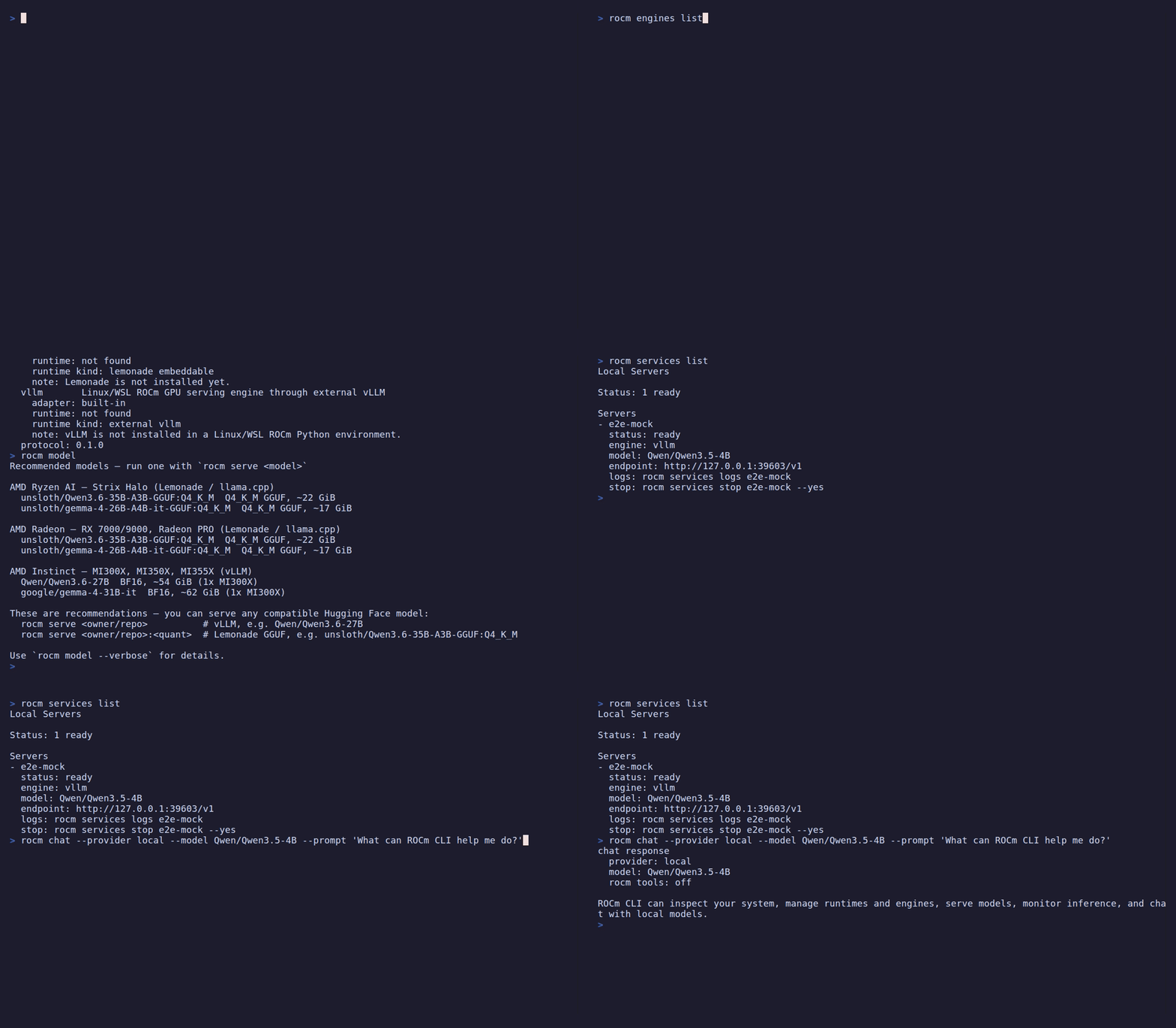
Inspect the environment, discover engines and models, find a running service, and chat with a locally served model:
Explore simulated GPU telemetry, model serving, and offline chat in the full-screen Console:

The installer downloads a prebuilt bundle, verifies its SHA-256 checksum,
installs the rocm and rocmd binaries into ~/.local/bin, and adds that
directory to your shell PATH. Rerun it any time to upgrade.
curl -fsSL https://raw.githubusercontent.com/ROCm/rocm-cli/main/install.sh | shThis tracks the default release channel. For nightly builds, pass the
nightly channel instead:
curl -fsSL https://raw.githubusercontent.com/ROCm/rocm-cli/main/install.sh | sh -s -- nightlyirm https://raw.githubusercontent.com/ROCm/rocm-cli/main/install.ps1 | iexThis tracks the default release channel. For nightly builds, set
ROCM_CLI_CHANNEL to nightly first:
$env:ROCM_CLI_CHANNEL = "nightly"
irm https://raw.githubusercontent.com/ROCm/rocm-cli/main/install.ps1 | iexBuilding requires Rust; the pinned toolchain in
rust-toolchain.toml (currently 1.96.0) installs automatically via rustup.
git clone https://github.com/ROCm/rocm-cli
cd rocm-cli
cargo build --release
This produces the two binaries under target/release/:
rocm— the CLI and interactive interfacesrocmd— the background telemetry daemon used by the dashboard
Run without installing:
cargo run --release --bin rocm -- examineOr copy the release binaries onto your PATH:
install -m 0755 target/release/rocm target/release/rocmd ~/.local/bin/See CONTRIBUTING.md for the full development setup, test commands, and commit-signing requirements.
Launch ROCm CLI with no arguments:
rocm
With no arguments on an interactive terminal, rocm opens the launcher — a
small front-door menu that gets you to the common tasks:
- Set up this system — install or update ROCm
- Serve a model — run a model on your GPU
- Diagnose & fix — check GPU, driver, and ROCm
- Chat — talk to a local or API-backed model
- Open full dashboard → — escalate into the live dashboard (
rocm dash)
Pick a row with the arrow keys and Enter; press q to quit. On a
non-interactive terminal (or piped output), rocm prints a one-shot status
summary instead of opening the launcher.
rocm ships two terminal UIs built on ratatui:
The lightweight hub described above. It runs the guided Set up, Serve, Diagnose, and Chat flows in place, and hands off to the full dashboard when you need live instruments. This is the default surface for everyday use; the legacy full-screen setup assistant has been retired.
The full-screen telemetry dashboard — every instrument and action on one screen.
It auto-starts an embedded rocmd daemon when none is running, then presents
five tabs (switch with Tab/Shift+Tab or number keys 1–5):
| Tab | What it shows |
|---|---|
| Home | At-a-glance status: GPU, active runtime, running servers |
| ROCm | Guided ROCm and runtime actions with inline details |
| Serving | Start, inspect, and manage model servers |
| Observe | Live GPU utilization, instances, and benchmark telemetry |
| Chat | Assistant chat backed by a local server or configured provider |
Live mode reads telemetry over a Unix domain socket, so it requires Linux or
WSL. Use rocm dash --demo for a synthetic session that runs anywhere without a
GPU or daemon.
Before serving a model, ensure a managed ROCm runtime is configured:
rocm install sdk
This downloads TheRock ROCm wheels and a matching PyTorch stack into a managed
environment. On machines with an existing ROCm install, rocm examine will
show it as legacy_rocm_status: detected_unmanaged — running rocm install sdk
creates a separate managed runtime alongside it.
Then serve a model:
rocm serve qwen
qwen is a built-in alias for a small assistant model that serves out of the
box. You can also serve any compatible Hugging Face model directly — see
Model serving for the GGUF-vs-safetensors rule, since which
form works depends on the engine your GPU selects.
| Command | Description |
|---|---|
rocm |
Open the launcher menu (setup, serve, diagnose, chat, dashboard) |
rocm examine |
Check GPU, ROCm install, engines, and managed folders |
rocm install sdk |
Install TheRock ROCm wheels into a managed Python environment |
rocm install driver |
Install the AMD kernel driver on Linux |
rocm serve <model> |
Start a local OpenAI-compatible model server |
rocm dash |
Open the full-screen telemetry dashboard |
rocm setup status |
Show first-time setup state |
rocm version |
Print the rocm-cli version |
rocm completions <shell> |
Print a shell completion script (bash, zsh, fish, elvish, powershell) |
rocm examine [--json] [--framework auto|pytorch|llama-cpp|skip]
Checks this computer's GPU, ROCm install, engines, and managed setup
folders — the command to run first to see whether a system is ready, and
what rocm install sdk and rocm serve will see. --json emits a
machine-readable report for diagnosis tooling instead of the human-readable
summary. --framework controls which ML framework the --json report probes
for its ROCm build and compiled GPU architectures: auto (the default) tries
PyTorch, then falls back to llama.cpp; pytorch or llama-cpp probe only
that framework; skip runs no framework probe at all, which is fastest and
still enough to answer GPU and driver questions. --framework only affects
the JSON report, not the human-readable one.
rocm install sdk    [--channel release|nightly] [--format wheel|tarball]
                    [--version x.y.z | --build-date YYYY-MM-DD]
                    [--family gfx110X-all] [--prefix PATH] [--dry-run]

rocm install driver [--dkms] [--yes] [--dry-run] [--reconcile]

rocm update         [--apply] [--runtime KEY] [--activate] [--dry-run]
install sdk downloads TheRock ROCm wheels into a Python environment managed
by rocm-cli. install driver installs the AMD kernel driver on Linux (DKMS or
native package). update checks for a newer ROCm package; pass --apply to
install it.
Manage multiple side-by-side ROCm installs:
rocm runtimes list
rocm runtimes activate <runtime-key>
rocm runtimes rollback
rocm runtimes uninstall <runtime-key>
rocm runtimes import <manifest-file> [--replace]
rocm runtimes adopt --python <path> [--root <path>] [--runtime-id ID]
                    [--runtime-key KEY] [--channel LABEL] [--replace]
adopt registers an existing TheRock-based Python environment as a managed
runtime. It does not work with standard ROCm package installs (for example,
/opt/rocm); use rocm install sdk instead.
Each ROCm install keeps its own multi-gigabyte folder, so installing or
updating a few times adds up. rocm storage shows where the space went and
frees the parts that are safe to remove:
rocm storage [report] [--json]
rocm storage remove-old-installs [--keep N] [--dry-run] [--yes]
rocm storage remove-downloads [--dry-run] [--yes]
remove-old-installs keeps the two most recent installs for each channel,
format, and GPU family, and never touches the install in use, the rollback
target, or a folder rocm-cli did not create. "Most recent" means most recently
installed rather than highest version, so after a deliberate downgrade the
older version counts as the newer install. Because the count applies per
channel, format, and GPU family, a machine that has tried several channels
keeps --keep installs for each of them. Anything it declines to remove is
listed with the reason, and --dry-run shows the whole plan without changing
anything. remove-downloads clears cached archives that rocm-cli can download
again; a cache folder that is a link to somewhere else is left alone rather
than followed. The report also lists the
uv package cache and downloaded models; those are shared with other tools
and are never removed by rocm-cli.
rocm engines list
rocm engines install <engine> [--runtime-id KEY] [--python-version X.Y] [--reinstall]
rocm engines shell <engine>   [--runtime-id KEY | --env-id ID] [--shell PATH]
Supported engines: lemonade, vllm.
Start a local OpenAI-compatible model server:
rocm serve <model> [--engine lemonade|vllm]
                   [--device gpu_required|gpu_preferred]
                   [--gpu auto|<index>]
                   [--runtime-id KEY | --env-id ID]
                   [--host HOST] [--port PORT]
                   [--verbose] [--foreground | --managed]
                   [--no-smoke-test]
                   [--allow-public-bind]
                   [--temperature TEMP] [--top-p PROB] [--max-tokens N]
--temperature (>= 0.0), --top-p (0.0-1.0), and --max-tokens (> 0) set
server-wide sampling defaults for the launched engine. They apply only to
vllm and lemonade; other engines reject them. For vLLM they are folded
into a single --override-generation-config JSON object (--max-tokens maps
to vLLM's max_new_tokens); for Lemonade they pass straight through as
llama.cpp's --temperature, --top-p, and --n-predict flags. Each control
is optional and independent — omit any of them to keep the engine's own
default.
rocm serve only reuses an already-running service for the same engine and
model if its sampling controls (and other recipe settings) match the ones
requested this time; otherwise it errors out instead of silently serving with
different settings. If you previously started a service with --temperature
(or another sampling flag) and now run rocm serve for the same model without
flags — or with different ones — stop the existing service first (rocm services stop) or match the original flags.
By default the server runs in the background under rocm-cli's supervision and
prints a deployment summary — a progress indicator while it starts, then a table
with the status, the full inference endpoint, the API-qualified model name, and a
quick smoke test (time to first token and approximate tokens/sec). Control
returns to your shell with the server still running; manage it later with rocm services (below).
--verbose (or --foreground) instead attaches to the server in the current
terminal and streams every engine log line — use it to debug a startup problem.
The server still runs as a managed background process, so while streaming you can
press Ctrl-D to detach — the log stream stops, your shell comes back, and the
server keeps running (manage it afterward with rocm services). Press Ctrl-C
to stop the server instead. --managed is the explicit form of the default
background behavior. --no-smoke-test skips the post-startup inference probe.
Which model form to pass depends on the engine your GPU selects. The Lemonade
engine (Ryzen AI or Radeon) serves llama.cpp GGUF models — pass a GGUF repo
with an explicit quantization variant, for example,
rocm serve unsloth/Qwen3-0.6B-GGUF:Q4_0. The vLLM engine (Instinct) serves
safetensors repos, such as rocm serve Qwen/Qwen2.5-1.5B-Instruct. A
safetensors-only id has no GGUF build, so serving it through Lemonade fails
rather than silently substituting a different model.
Some models (such as Llama) are gated and require HuggingFace authentication.
Log in with huggingface-cli login or set HF_TOKEN in your environment
before serving gated models.
--gpu selects which AMD GPU the server runs on. auto (the default) probes
per-GPU VRAM with amd-smi and picks the lowest-numbered GPU that is idle and
not already used by another rocm-cli server (managed or foreground), falling
back to the GPU with the most free memory. Pass a single index (--gpu 1) to
pin a specific device. The
selected GPU is exposed to the engine via HIP_VISIBLE_DEVICES. Serving one
model across multiple GPUs is not supported. Because selection uses the
amd-smi ordinal but is applied via HIP_VISIBLE_DEVICES, rocm-cli warns when
ROCR_VISIBLE_DEVICES is set, since the two orderings can diverge.
Manage background servers started with --managed:
rocm services list [--all]
rocm services logs <service-id>
rocm services stop <service-id> [--yes]
rocm services restart <service-id> [--yes]
rocm dash [--demo] [--replay <file>]
Full-screen TUI with Home, ROCm, Serving, Observe, and Chat tabs — GPU utilization graphs, active serving instances, benchmark results, guided actions, and a chat tab backed by any configured provider. See Interactive interfaces for the tab breakdown.
--demoruns a deterministic synthetic session with no GPU or daemon needed, works on all platforms.--replay <file>replays a recorded NDJSON session.- Live mode requires Unix domain sockets (Linux and WSL only).
rocm chat [--provider anthropic|openai|...] [--model NAME] [--prompt TEXT] [--tools]
          [--temperature TEMP] [--top-p PROB] [--max-tokens N]
Chat with an AI provider from the terminal. Reads from stdin when --prompt is
omitted. --temperature, --top-p, and --max-tokens are optional sampling
controls forwarded to the request; each is independent, so omit any of them to
use the provider's default.
Install and manage ComfyUI for image generation (alias: rocm comfy):
rocm comfyui install    [--runtime-id KEY] [--reinstall] [--dry-run]
rocm comfyui start      [--host HOST] [--port PORT] [--no-open-browser]
rocm comfyui stop
rocm comfyui status
rocm comfyui logs       [--lines N]
rocm comfyui models-path
rocm automations list
rocm automations enable <watcher-id>  [--mode observe|propose|contained]
rocm automations disable <watcher-id>
Optional background checks that can propose or apply changes automatically.
Show or change rocm-cli's saved settings — the default engine and runtime, which runtime each engine prefers, local GPU telemetry opt-in, and the provider used for chat, automations, and ambiguous natural-language plans (including enabling providers and storing their API keys).
rocm config show
rocm config set-default-engine <engine>
rocm config clear-default-engine
rocm config set-default-runtime <runtime-id>
rocm config clear-default-runtime
rocm config set-engine <engine> [--runtime-id KEY | --env-id ID | --clear]
rocm config set-telemetry local|off
rocm config set-planner-provider <provider>
rocm config clear-planner-provider
rocm config enable-provider <provider>
rocm config disable-provider <provider>
rocm config set-provider-key <provider>
rocm config clear-provider-key <provider>
rocm logs [--service <service-id>] [--search TERM ...]

rocm uninstall [--yes] [--dry-run]
               [--keep-binaries] [--keep-config] [--keep-data] [--keep-cache]
rocm completions <shell> prints a completion script for the given shell to
stdout. Supported shells are bash, zsh, fish, elvish, and powershell.
rocm completions <bash|zsh|fish|elvish|powershell>
Install the script for your shell:
# bash (per-user, no sudo; add this line to ~/.bashrc to persist)
source <(rocm completions bash)
# bash (system-wide; requires the bash-completion package)
rocm completions bash | sudo tee /etc/bash_completion.d/rocm > /dev/null

# zsh (per-user; the directory must be on $fpath and compinit must run)
mkdir -p ~/.zsh/completions
rocm completions zsh > ~/.zsh/completions/_rocm
# then in ~/.zshrc, before `compinit`:
#   fpath=(~/.zsh/completions $fpath)
#   autoload -Uz compinit && compinit

# fish
mkdir -p ~/.config/fish/completions
rocm completions fish > ~/.config/fish/completions/rocm.fish

# elvish (run once; re-running appends a duplicate block to rc.elv)
mkdir -p ~/.config/elvish
rocm completions elvish >> ~/.config/elvish/rc.elv

# powershell (current session only; to persist, append the output to $PROFILE)
rocm completions powershell | Out-String | Invoke-Expression
See CONTRIBUTING.md.
- Testing and verification:
docs/testing.md - Developer manual QA:
docs/manual-testing.md - Engine plugin policy:
docs/engine-plugins.md - vLLM adapter:
docs/vllm.md